


 Vista
Vista
| Advantages | When Vista Won’t Boot | Repair | Class Action Lawsuit |
| Bugs | Where To Find | Installing | Books |
| Where Windows Vista Hides Interesting Information | ||
|---|---|---|
| Function | Where To Look | Notes |
account control |
To turn off account control (UAC (User Account Control)
):
|
By default Windows warns you every time it runs a program not digitally signed or anything that could install or uninstall or change a setting. This can drive you nuts, since it will ask about the same program 10 times a minute. |
Anti-aliasing |
To turn on font smoothing (anti-aliasing)
|
By default anti-aliasing is on. For some fonts, Vista even supports subpixel anti-aliasing called Clear Type. With an LCD (Liquid Crystal Display) monitor, you want ClearType subpixel anti-aliasing. To turn it on click Start ⇒ Control Panel ⇒ Appearance and Personalization ⇒ Personalization ⇒ Windows color and appearance ⇒ Open classic colour and appearance ⇒ Effects ⇒ ClearType. |
Associations |
|
Unlike earlier incarnations of Windows, Vista does not let you set up different associations for open, edit and print. You can just set up the open association. You might try out the Creative Element Power Tools to handle configuring all the associations and the icon. |
certificates |
To view digital certificates:
|
Let you view or add digital certificates used for SSL (Secure Sockets Layer) encrypted Internet links. Java code-signing certificates do not appear here. Editing certificates is not for novices. You might want to turn off OCSP revocation checking, for example. |
clear event log |
To get rid of old event logs that waste disk space:
|
There are several kinds of logs you can clear. You can sort by severity of the error first then scan the logs by eye to look for problems before you delete them. |
clean junk files off your disks |
To get rid of unnecessary orphaned temporary files:
|
Get rid of temporary files, empty the recycle bin. Note you don’t actually click Administrative Tools. Look for Free up disk space right below it. |
clock setting |
To set the date and time:
|
Synchronises with Microsoft atomic clock, time.windows.com. It is quite unreliable, so I suggest replacing it with another from this list of timeservers. If that does not work, try SetClock. |
colours and fonts |
To configure the colours, fonts, themes and decoration:
C:\Windows\fonts. | |
correct problems |
at the command prompt: sfc /scannow |
This checks Vista files for consistency and automatically corrects some problems. |
country |
|
The trick is you have to set the country in four places |
desktop |
C:\Users\user\Desktop\ and C:\Users\Public\Desktop\ | Where desktop shortcuts and folders live. |
device manager |
To see what hardware and device drivers are configured:
|
What devices are connected? Are there IRQ (Interrupt Request) conflicts? Where do I install new device drivers? |
dial the Internet |
To set up a dial-up Internet connection for the first time:
|
You can set up a connection to a new ISP (Internet Service Provider) or find all the existing ones. |
dialer default |
To configure which of several possible connections to use to access the
Internet:
|
Which dial up ISP or LAN do you want to use to access the Internet? Put connections in priority order. |
dialer disabling |
To disable a dialer:
|
You must disable all your diallers when you use the LAN, or you may find programs wanting to use them in preference to the LAN. |
dialing rules |
To configure the rules about how to dial the phone:
|
Which exchanges are long distance require 1+? When do you need to dial the area code for local calls? Where are you dialling from? See my student project proposal to clean this mess up. |
defrag your disks |
To defrag your disks:
|
Pull files scattered over the disk into one contiguous piece. Note you don’t actually click Administrative Tools. Look for Defragment your hard drive right below it. See defraggers for better quality third party tools. |
disk accessing |
To access a shared disk:
|
Look at somebody else’s hard drive. Optionally, set up a drive letter so their drive forever after looks to be part of your machine. You won’t be able to access any network drives on a machine that is hibernating. Just looking at its drives will not bring it out of hibernation. You must walk over to the that machine and wake it up. This is also true for accessing a shared printer on a hibernating machine. |
disk cleanup |
To delete unnecessary files:
|
This cleans up temporary files left after a crash and various bits of miscellaneous junk. It can really add up taking over the bulk of your hard disk if you don’t clean it out periodically. |
disk sharing |
To share your disk, or a folder with others:
|
Share your folder or disk with others on the LAN. |
DOS box command prompt |
To bring up the DOS command prompt:
|
This is where you can run old DOS programs or BAT (Batch) files to automate running Windows files. If you use BAT files extensively, you probably should using tcc/TakeCommand instead. |
drive letters |
To change the drive letter of a disk partition, CD
or DVD drive:
You can also use
|
Making your CD-reader always R:, writer always
W: and DVD
reader/writer always V:. Be careful reassigning
disk drives. Registry references will not automatically be
adjusted. You may find all programs on that drive stop working. You
can’t resetter the system partition or the partition
CMOS (Complementary Metal Oxide on Silicon) booted from. This makes it vary hard to clone
a system without help from a PowerQuest tools. Your
clone has to have different drive letters, e. g. copy of the operating system
seems to have its own set of drive letter mappings. However, they are
fragile. If you add a drive, swap primary and secondary drives, or change the
drive CMOS
boots from first, it suddenly forgets its letters and reverts to a default
set and very likely will become unbootable.
You can use subst X: Y:\ to define alias drive letters for existing drives, or subst X: Y:\somedir to create shortcuts to commonly used directories. However, Windows forgets your settings after every reboot. To get around that problem you need to compose a bat file to do the SUBST and install it as the login script. SUBST is quicker and does not fail when other network connections fail. See J Drive for details. |
eject |
Ejecting a CD/DVD (Compact Disc/Digital Video Disc) is very flaky in
Vista. There are three techniques to try when it does not work:
|
Often Vista saves up writing to do when the disk is closed/ejected, so be patient so long as the CD/DVD is whirring. Sometimes you have to reboot to clear a stuck eject. |
environment variables |
To set environment variables:
|
Where you do you SET XX=YYYY controls for BAT files. If in doubt, put your variables in the system section. This way they won’t get lost if the system decides to rename your user directory, which it will do if you change your computer workgroup/name. After you set you variables, start new DOS boxes to make the changes take effect. To make the changes take effect in BAT files that you trigger with the task manager, you must reboot. |
format |
There are three places to format:
|
You can format hard disks, CD s, DVDs (Digital Video Discs) and floppies. |
host/machine name |
To change your computer’s name on the LAN
:
|
Computer name and Workgroup for this machine. Only machines in the same workgroup see each other. |
change icon size |
To change the desktop icon size:
|
|
install a font |
To install a font, usually TTF (TrueType Font)
or OpenType-TTF:
| |
IP (Internet Protocol) configuration |
To manually assign a fixed IP:
|
Configure static or dynamic (DHCP (Dynamic Host Configuration Protocol) ) IP/DNS assignment. This menu item will not exist until your Ethernet card is functioning properly. Check with the device manager if you don’t see the Local Area Connection option. |
IP display |
To display the IP automatically assigned to your machine or
manually configured:
|
What IP addresses in this machine using? What has DHCP given me for a DNS (Domain Name Service) server? The full name is C:\WINNT\system32\ipconfig.exe. Also shows dial up IP as well. |
.keystore |
C:\Users\user\.keystore | Java code-signing certificates. Use keytool.exe to view the file. |
lost icon recovery |
To recover lost desktop icons:
|
Sometimes your recycle bin, computer, network etc. system icons will
mysteriously disappear from the desktop. This is how to bring them back. It
is fairly easy to accidentally delete one of the crucial system icons. I keep
copies in a desktop folder just in case.
Sometimes Vista display old versions of icons. To clear its cache:
|
memory test |
To change run a memory diagnostic test.
| |
Menu |
The menu structure is kept in the hidden directory: C:\ProgramData\Microsoft\Windows\Start Menu. |
You can manipulate the menu by deleting *.lnk shortcut entries, or moving them around in the menu tree, by renaming them or by modifying their properties. |
pagefile.sys |
To change the size or placement of the paging file:
|
Set the size of your backing store, usually to 1.5 to 3 times the size of real RAM, e.g. if you had 2 GB of real RAM set it to 3000 Mb. |
printer sharing |
To share your printer with others:
|
Share your printer with others on the LAN,
or access somebody else’s printer on the LAN.
Anyone wanting to use the shared printer must have an account on the
computer with the printer, or at least must know some user-id/password
combination on the server to connect to the printer with. Anyone wanting to use the printer must first click
start ⇒ control panel ⇒ view network devices ⇒ right click
open on the computer with the printer ⇒ right click on the printer
⇒ click connect For more detail, see the printer sharing entry. |
program data |
C:\Users\user\AppData\Roaming\
(supposed to be for configuration data that would ideally follow you around
from computer to computer) or C:\Users\user\AppData\Local\ (supposed to be for configuration data that is tied to this particular computer). or C:\Users\user\Documents\ (pre Vista). or C:\Windows (pre Win2K) or C:\Users\user\AppData\Local\VirtualStore\ |
Where programs tend to keep configuration information. |
QuickLaunch |
C:\Users\user\AppData\Roaming\Microsoft\Internet Explorer\Quick Launch\ | Where the *.lnk files corresponding to the QuickLaunch icons are stored. The QuickLaunch icons live in the left side of the task bar at the bottom of the screen. You can launch programs with a single click. |
ReadyBoost |
To configure ReadyBoost:
To turn it off/on:
|
ReadyBoost is caching software to use your flash/flash drive to speed disk
access.
It allows you to use up to 4 gigabytes of a flash drive for speeding up hard disk access. You use the rest of the drive (if any) for storing, transporting and backing up files. If you select quick removal, data corruption is less likely. Nothing bad will happen if someone yanks the flash drive out of its slot with the power on. If you select performance it turns on write caching (procrastinating writes to the disk by temporarily staging them on the flash drive). If someone yanks the flash drive out with the power on your files, including your hard disk files, will be badly corrupted. You can use CHKDSK /F to repair some of the damage, but the recovery will not be perfect. Cheapie flash drives do not support write caching. Write caching is disabled by default. |
restore point |
To create a restore point:
|
Keep several restore points (aka checkpoints or snapshots) since the most recent one may already have been corrupted. Restore points are not a substitute for image and file-by-file backups. It is probably a good idea to turn this on for all hard disks that have crucial system files. If you just turned on drive D:, you won’t protect changes to drive C:. The restore points will be stored in files with the unlike name of System Volume Information. |
run |
To run a program:
|
You can drag this entry to the desktop or to some prime real estate on the menu for more convenient access. If often use the command line, consider tcc/TakeCommand which offers many benefits. |
search indexing |
To tweak the search indexing:
|
The background indexer is so annoying I turned it off by telling it not to index any drives. I am using Copernic instead. You can control which directories are indexed and which file extensions. |
startup programs |
To control which programs automatically run (autorun) when you start up the
computer:
|
Not only can you turn off programs that are automatically running, you can
learn a bit about them both from where they are on disk and from a database
that Microsoft maintains.
You can also get at them via:
The short cut files themselves are stored in: C:\Users\user\AppData\Roaming\Microsoft\Windows\Start Menu\Programs\Startup\ and C:\ProgramData\Microsoft\Windows\Start Menu\Programs\Startup. You can manipulate them directly with copy/paste/delete. |
task bar |
To move the task bar from the side back to the bottom:
|
|
Transparency |
To turn off transparent window borders
|
By default transparent windows borders is on. |
version |
To find out the version and build number.
|
The Control Panel welcome will not give you the version, just the OS variant name. |
wallpaper |
C:\Users\user\Pictures\. If you use Opera, sometimes they are stored in: C:\Users\user\AppData\Roaming\Opera\OPERA\skin\ |
Where Vista stores desktop wallpapers, past and present. You can change the wallpaper by finding a suitably large image in your browser and right click Use image on desktop. |
| How to Use Bootsect.exe | |
|---|---|
| bootsect.exe { /help | /nt52 | /nt60 } { SYS | ALL | C: } | |
| Option | Notes |
| /help | display help on command line options. |
| /nt52 | Partition contains a bootable pre-Vista OS. Applies the master boot code that is compatible with NTLDR. |
| /nt60 | Partition contains a bootable Vista OS. Applies the master boot code that is compatible with BOOTMGR. |
| SYS | Updates the master boot code on the system partition used to boot Windows. |
| C: | Updates the master boot code on the C: partition (or other drive letter). |
| ALL | Updates the master boot code on all bootable partitions. All bootable partitions must be pre-Vista /nt52 or all Vista /nt60 for ALL to make sense. |
Vista sometimes loses its ability to install and uninstall programs. It keeps repeatedly telling you that you don’t have permission to access some obscure file. You can sometimes correct the program by re-registering the windows installer itself.
Vista then developed a glitch and refused to do security updates. Acer wanted me to ship the computer at my expense to Toronto and be without it for a month or so while they reinstalled Vista. I refused. After a month or horsing around with Microsoft support trying to get it to work, they announced the only way to fix the problem was with the missing DVD. The Microsoft support person then agreed to ship me the DVD to repair this particular problem, but it would not be compatible with my activation key, so it could not be used to reinstall after a crash, only to fix this minor damage to the Vista installation.
These three have ripped off many other people besides me. If they advertise Vista is included, Vista should be included! I would like to launch a class action lawsuit against them to make them:
I could also try for a criminal conspiracy fraud conviction, but my experience with the authorities show that too would take much more money and energy than I have. So if you have been similarly swindled, please let me know. Perhaps when enough of us get together, something can happen to put a stop to this outrage.
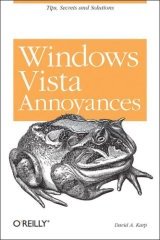 |
recommend book⇒Windows Vista Annoyances | |||||||||||||||||||||||||||||||||||||||||||||||||||||||
| by | David A. Karp | 978-0-596-52762-4 | paperback | |||||||||||||||||||||||||||||||||||||||||||||||||||||
|---|---|---|---|---|---|---|---|---|---|---|---|---|---|---|---|---|---|---|---|---|---|---|---|---|---|---|---|---|---|---|---|---|---|---|---|---|---|---|---|---|---|---|---|---|---|---|---|---|---|---|---|---|---|---|---|---|
| publisher | O’Reilly  | |||||||||||||||||||||||||||||||||||||||||||||||||||||||
| published | 2007-12-14 | |||||||||||||||||||||||||||||||||||||||||||||||||||||||
| Problems with Windows Vista and what you can do to ameliorate them. | ||||||||||||||||||||||||||||||||||||||||||||||||||||||||
| ||||||||||||||||||||||||||||||||||||||||||||||||||||||||
| Greyed out stores probably do not have the item in stock. Try looking for it with a bookfinder. | ||||||||||||||||||||||||||||||||||||||||||||||||||||||||
 |
recommend book⇒Windows Vista Secrets | |||
| by | Brian Livingston, Paul Thurrott | 978-0-7645-7704-8 | paperback | |
|---|---|---|---|---|
| publisher | Wiley | 978-0-470-24200-1 | hardcover | |
| published | 2007-01-10 | 978-0-470-12838-1 | eBook | |
| If one book can help you master Vista, this is it. ~ Fred Langa, former editor-in-chief of Byte Magazine | ||||
| Greyed out stores probably do not have the item in stock. Try looking for it with a bookfinder. | ||||
 |
This page is posted |
http://mindprod.com/jgloss/vista.html |
Optional Replicator mirror
|
J:\mindprod\jgloss\vista.html | |
 |
Please read the feedback from other visitors,
or send your own feedback about the site. Contact Roedy. Please feel free to link to this page without explicit permission. | |
| Canadian
Mind
Products
IP:[65.110.21.43] Your face IP:[216.73.216.140] |
| |
| Feedback |
You are visitor number | |


