Introduction
SSD (Solid State Disk).
A disc drive without moving parts, implemented with flash
RAM (Random Access Memory)
with a DDR-2 or DDR-3
RAM
cache. For high performance, you would attach them via
SATA (Serial ATA)
or USB-3. Oddly most
SSD
drives are only SATA-II.
Advantages
SSDs (Solid State Disks)
have the following advantages:
- Faster than traditional hard disks. They have 0
seek and 0 rotational latency. Random
reads are 47 times faster. Peak data
reads are 3.5 times faster.
- They don’t slow down if the files are fragmented.
- Use about ¼ the power of
traditional hard disks.
- Rugged. No delicate mechanical parts.
- No need to defrag. All spots on the drive are equally accessible.
- Silent.
- Uses significantly less power than hard disks, so in a laptop give
increased battery life.
- Windows spends an inordinate amount of time erasing disk sectors.
It does not want confidential data from a previous user becoming
available to someone else.
SSDs
support the TRIM command that lets them procrastinate this work and
do it in the background, focusing their efforts on real work. It can
also eliminate a physical erase altogether, extending the life of
the
SSD.
SSDs
use a transparent form of garbage
collection. To change a byte, the hardware reads the
containing block, modifies it then writes it in an empty slot. The
original slot can then be wiped and recycled later, or simply
overwritten as a whole. Some earlier
SSD
s did not support TRIM, making them remarkably slower. TRIM only
works on full blocks. According to Raxco,
if you defrag
SSDs
to consolidate free space into full blocks, you can extend the life
of your drive. Since there is no mechanical latency in an
SSD,
defrag positioning is not useful, just free space consolidation. I
don’t understand TRIM well enough to know if they are correct.
The
SSD
hardware maintains its own map of which physical 4K pages are in
use. The
OS (Operating System)
maintains its own map of which 4K clusters are in use in each
partition. To change a byte in a page in an
SSD,
it must read the block into a buffer, change the byte and write the
block back to another page slot that has been pre-erased. The
OS
sends the TRIM command to tell the
SSD
the data in certain pages have been logically erased. The
SSD
need need no longer preserve that data during garbage collection
inside the
SSD.
Further, those pages can be erased at leisure ready to accept fresh
writes.
- Prices are plummeting. It won’t be long before
SSDs
come standard on all computers without the need to install software
other than the
OS
Disadvantages
SSDs
have the following disadvantages:
- The big problem is
SSD
drives are only designed to handle 1000
to 5,000,000 writes per cell before
failing. They are not suitable for violative data. You would used
them for frequently used, but rarely changing, program executables.
- The cost per byte is higher.
- You currently can’t get them in terabyte plus sizes.
What to put on your SSD
You can Google
SSD
to find various people’s ideas of what you should put on your
SSD.
SSDs
are getting cheap enough, you can put the entire
OS,
all your programs and all your active data on it. You want the files
used most often. Windows does not track that statistic, but it does
track time last accessed if you temporarily use:
rem turn on last-access maintenance
fsutil behavior set disablelastaccess 0
For more details see fsutil.
I set up my
SSD
machine without paging files. I put all my active files on the
SSD.
The hard disk contains only backups and downloads and room for Ubuntu.
I have write cache turned on, wrirte cache flushing on, 8.3 legacy names off and lastaccess
tracking turned off for speed. You might experiment with page files,
third party write cache and putting page files on
SSD
or hard disk.
Let us say your
SSD
drive is S: You can simply move files to S: and change the bat files and configuration
files to point to them. This is tricky if the files are part of
Windows. Windows does not like you moving its files off C:
especially while it is running. Techniques you might use include:
- Preparing a second temporary Windows boot partition, booting from
it and using it to patch in hard links in the original partition.
- Patching registry entries on the fly for another user not
currently logged on.
- Turning off hibernation. Turning off checkpoints to free up
sufficient space on your system drive to put the whole thing on
SSD.
- Reinstalling less important apps on some drive other than your
SSD.
- Experiment with turning off the paging file altogether if you have
a more than 4 GB of real
RAM.
- Moving/resizing the page files with the facilities in the control
panel.
- Using a utility like the one in Paragon
Hard Disk Manager to manage this for you. (I have not used it
myself.) Move any Windows
OS
since XP from a regular hard disk to a fast
SSD
(Solid State Drive) even of a smaller capacity, using advanced data
exclusion capabilities.
If you boot from your
SSD,
it will be the C: system drive. If you don’t, you probably want
to move a number of the crucial system files to your
SSD.
Choosing an SSD
Very small
SSDs
are called USB Flash
drives.
You could use one in addition to your main drive and put your most
commonly used files on it and put your scratch files and pagefiles
there for a relatively inexpensive huge boost is disk speed.
OCZ drives come in SATA-II and SATA-3 (6
Gb/sec) lines. The SATA-3 lines range from the bottom of the line
Solid-3 (500/450),
Agility-3 (525/475),
Vertex-3 (535/480)
up to the Vertex-3 Max IOPS (550/500).
The prices are all over the map. Often a higher end model will be
cheaper than a slower one. Prices can vary by over a hundred dollars
at different stores.
Installation Tips
Windows gets terribly confused when you add a drive. It may cause
renumbering of the physical drives. Windows can usually repair the
damage, however, if you have multiple
OSes,
the multi boot
will also get confused. You have to use bcdedit
to sort it out. You will at the very least have to manually reassign
drive numbers to the various partitions. It helps if you give your
partitions unique names with the drive letter embedded. In the worst
case, you may have to reinstall Windows on one or more partititions.
Console yourself with the knowledge that Microsoft employees do this
monthly as a matter, of course, to repair miscellaneous damage and
deterioration. Copying bootable partitions seems to cause subtle
damage even when the drive number is constant. Windows has three ways
of repairing damage:
- Boot from CD and select repair.
- Run from CD and select upgrade.
- Boot from CD and select install. This effectively uninstalls
everything. It leaves you data partitions alone.
You must engage
AHCI (Advanced Host Controller Interface)
in the
BIOS (Basic Input Output System)
or your drive will be dog slow. Leave some ports with out it, since
your hard disk and
DVD (Digital Video Disc)
might not be compatible with it.
Corsair
Corsair make a several model series. They differ in speed and whether
they use 3 or 6 Gb/s
SATA.
In order of ascending price and performance they are:
Corsair Drive Lines
| Corsair Drive Lines |
|---|
| Line |
Colour |
Notes |
|---|
| Nova |
grey with green writing |
discontinued |
| Force |
black with black writing |
discontinued |
| Force 3 |
grey with baby blue writing |
discontinued |
| Force
GT |
red with white writing |
|
| Force
GS |
red with white writing |
|
| Performance 3 |
silver |
discontinued |
| Neutron |
grey with blue writing |
|
| Neutron
GTX |
grey with red writing |
newest. highest performance. Prices are now much lower, so you
might as well get the fastest drive. |
Shopping for an SSD
These links take you to various Amazon online stores that take credit
card payments.
No PayPal
or payments by mail. Amazon prohibits me from posting prices, (because
they so rapidly go out of date) but I have ordered them cheapest to most
expensive. I refresh the ordering once a week.
SSD
prices are quite volatile.
$4.95electronic link to SilverStone Adapter Mounting Bracket
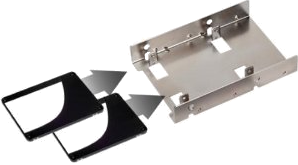 |
recommend electronic⇒SilverStone Adapter Mounting Bracket |
| asin |
B002BH3Z8E |
|---|
| Lets you mount a 2.5” form factor drive in a 3.5” bay. Some SSD drives include such an adapter bracket; some do not. |
|
| Greyed out stores probably do not have the item in stock |
$95.52electronic link to Corsair Force LS Series 240 GB 2.5-Inch SSD CSSD-F240GBLSB
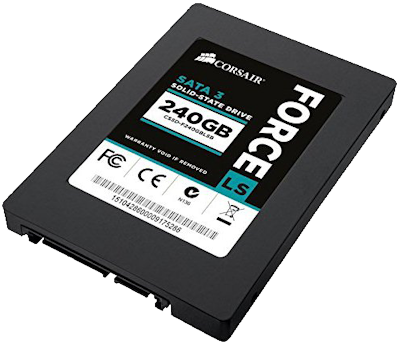 |
recommend electronic⇒Corsair Force LS Series 240 GB 2.5-Inch SSD CSSD-F240GBLSB |
| asin |
B00V5LZ1NY |
|---|
| Low power version. 3 year warranty. Max Sequential Read: 560MB/s. Max Sequential Write: 320MB/s. specs. SATA3. |
|
| Greyed out stores probably do not have the item in stock |
$102.05electronic link to Intel 510 Series, 120 GB, SATA-3, 6 Gb/s, SSD
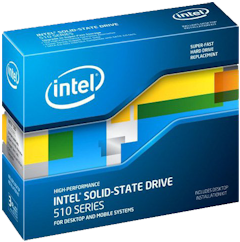 |
recommend electronic⇒Intel 510 Series, 120 GB, SATA-3, 6 Gb/s, SSD |
| asin |
B004OR0GRC |
|---|
| Full speed SATA-3 6 Gb/s 3 version. 2.5-Inch - SSDSC2MH120A2K5. It needs special mounting screws which oddly do not come with it. |
|
| Greyed out stores probably do not have the item in stock |
$119.99electronic link to Intel 730 series, 2.5-Inch, 240Gb, SSD
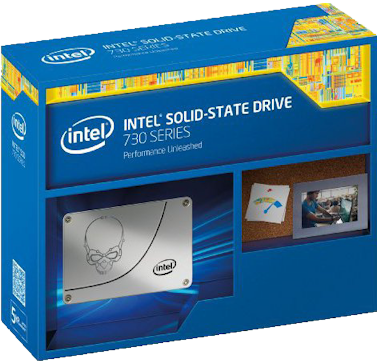 |
recommend electronic⇒Intel 730 series, 2.5-Inch, 240Gb, SSD |
| asin |
B00IF4NGEU |
|---|
| Model SSDSC2BP240G4R5. The is the newest Intel line. Comes in both 240Gb and 480Gb versions. Has a skull etched on the drive. This out of character for Intel. The drive has a capacitor to give it a little power to deal with a sudden power loss without corruption. Sequential Read 550 MB/s. Sequential Write 270 MB/s. Power 3.8Watts. Endurance Rating (Lifetime Writes) 50GB Writes/Day. Mean Time Between Failures (MTBF) 2,000,000 Hours. Warranty Period 5 yrs. They seem to have licked the problem with writes prematurely wearing out the drives. Spec. |
|
| Greyed out stores probably do not have the item in stock |
$136.99electronic link to Corsair Neutron GTX 120 GB SSD
 |
recommend electronic⇒Corsair Neutron GTX 120 GB SSD |
| asin |
B00B9BDWXG |
|---|
| dim |
7 × 10 × 0.70 cm
2.76 × 3.94 × 0.28 in |
|---|
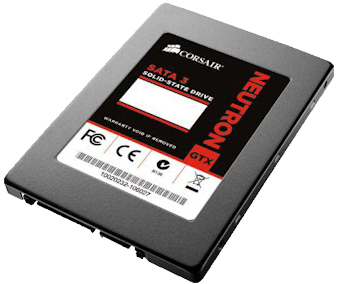
| Model CSSD-N120GBGTXB-BK, Top of the line Corsair SSD, 120 GB. 555 MB/sec max read, 511 MB/sec max write. SATA 3, 6 GB/s. 128 MD DRAM cache. Claim 2 million hours MTBF. 4.6 watts. In comparison a green hard drive is about 3.60 watts. The drive is tiny. The specs say it weighs 100 grams (3.53 oz), but the drive itself weighs in at 49 grams (1.7 oz). The slightly older CSSD-N120GBGTX-BK model is what I decided to buy for myself. It is fast. It supports TRIM. It advertises it is LAMD. This means it uses a Link_A_Media brand controller, not that it is geographical-location aware. Specs. It requires 8 mounting screws, 4 to mount the drive on the bracket and 4 to mount the bracket in the case. It comes with 4 screws that fit neither purpose. There are no instructions. Make sure you mount the drive on the bracket the right way up so it does not hang over the edge. You need to provide your own SATA power and data cables. You must configure the SSD’s SATA port in BIOS so that it uses AHCI (Advanced Host Controller Interface). They don’t tell you that. Without AHCI, it rivals a floppy in speed. |
|
| Greyed out stores probably do not have the item in stock |
$149.99electronic link to Samsung Electronics 840 EVO-Series 250GB SSD
 |
recommend electronic⇒Samsung Electronics 840 EVO-Series 250GB SSD |
| asin |
B00E3W1726 |
|---|
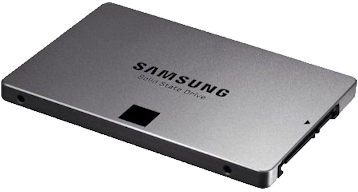
| MZ-7TE250BW, 2.5-Inch, SATA III, Sequential Read Speed 540 MB/s / Sequential Write Speed 520 MB/s / Random Read Speed 97K/s / Random Write Speed 66K/s. Amazon Best seller. Includes caching software. Also comes in sizes from 120GB to 1 TB. AES 256-bit full-disk encryption. Specs. |
|
| Greyed out stores probably do not have the item in stock |
$151.64electronic link to Intel 320 Series, 80 GB, SATA-2, 3 Gb/s, SSD
 |
recommend electronic⇒Intel 320 Series, 80 GB, SATA-2, 3 Gb/s, SSD |
| asin |
B004T0DNJC |
|---|
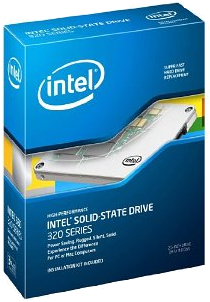
| They have a reputed 1.2 million hours MTBF. This means you can also use them in write-intensive applications, such as paging disks, or holding the entire system drive. 80 Gigabytes. Maximum sequential read speed up to 270 MB/second and maximum sequential write speed up to 90 MB/s. 2.5” form factor. Specs. The downside is it is only 3.0 Gb/s SATA not 6.0. |
|
| Greyed out stores probably do not have the item in stock |
$199.00electronic link to Intel 320 Series 120 GB SATA-2 3.0 Gb/s SSD
 |
recommend electronic⇒Intel 320 Series 120 GB SATA-2 3.0 Gb/s SSD |
| asin |
B004T0DNQ0 |
|---|
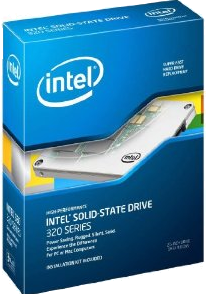
| This is Intel’s newest line of durable SSDs. They have a reputed 1.2 million hours MTBF. This means you can also use them in write-intensive applications, such as paging disks, or holding the entire system drive or entire databases. 120 Gigabytes. Maximum sequential read speed up to 270 MB/second and maximum sequential write speed up to 220 MB/s. Specs. The downside is it is only 3.0 Gb/s SATA not 6.0. |
|
| Greyed out stores probably do not have the item in stock |
$249.40electronic link to Corsair Force GT 240 GB Force SSD
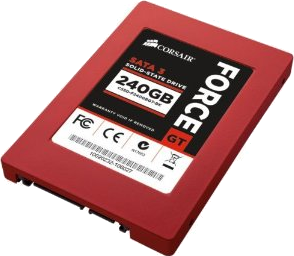 |
recommend electronic⇒Corsair Force GT 240 GB Force SSD |
| asin |
B005IZ4IRS |
|---|
| 240 Gigabytes. Maximum sequential read speed up to 555 MB/second and maximum sequential write speed up to 525 MB/second. Includes 2.5” to 3.5” adapter bracket. SATA III/6Gb/s. |
|
| Greyed out stores probably do not have the item in stock |
$299.00electronic link to Corsair Neutron GTX 240 GB SSD
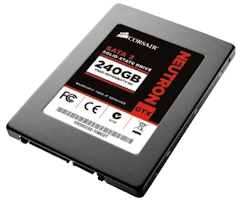 |
recommend electronic⇒Corsair Neutron GTX 240 GB SSD |
| asin |
B008YUVA34 |
|---|
| Top of the line Corsair SSD, 240 GB. 555 MB/sec max read, 511 MB/sec max write. SATA 3, 6 GB/s. 128 MD DRAM cache. Claim 2 million hours MTBF. Specs. |
|
| Greyed out stores probably do not have the item in stock |
$300.00electronic link to OCZ Storage Solutions Vertex 450 Series 256 GB 7mmm
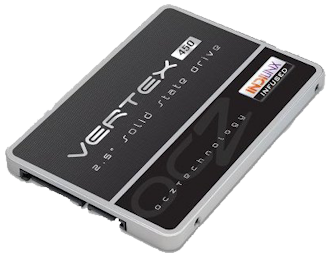 |
recommend electronic⇒OCZ Storage Solutions Vertex 450 Series 256 GB 7mmm |
| asin |
B00CXKRWJ2 |
|---|
| VTX450-25SAT3. Sata 3. Includes drive-cloning software. Thin, for use in notebooks. Sequential Read Speed 540 MB/s. Sequential Write Speed 525 MB/s. Random Read Speed (4K, QD32) 85,000 IOPS. Random Write Speed (4K, QD32) 90,000 IOPS. 7mm Height. For compatibility with the latest thinner form factor notebooks. Bundled with a 3.5-inch desktop adapter bracket. OCZ is a Toshiba company. details. |
|
| Greyed out stores probably do not have the item in stock |
$399.88electronic link to Intel 320 Series 600 GB SATA-2 3 Gb/s SSD
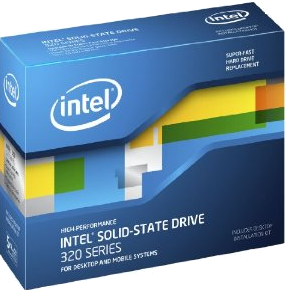 |
recommend electronic⇒Intel 320 Series 600 GB SATA-2 3 Gb/s SSD |
| asin |
B004T0DNII |
|---|
| This is Intel’s newest line of durable SSDs. They have a reputed 1.2 million hours MTBF. This means you can also use them in write-intensive applications, such as paging disks, or holding the entire system drive or entire databases. 600 Gigabytes. Maximum sequential read speed up to 270 MB/second and maximum sequential write speed up to 220 MB/s. Specs. Surprisingly all this RAM still fits in a 2.5” form factor. The downside is it is only 3.0 Gb/s SATA not 6.0. |
|
| Greyed out stores probably do not have the item in stock |
One thing I don’t like about Corsair is their violent product
names — Vengeance, Force, Dominator, Neutron… I just want
my computer to go faster. I don’t want to assassinate or rape
anyone.
Software
I have been looking around for software to manage
SSDs
properly. I would like three things:
- Something to let me put some of the Windows files on
SSD
and some of my crucial data files there too without having to modify
any of my applications or patch Windows to notify it of the new
locations. Everything should look to the software just as it was
before with everything on hard disk. A virtual disk driver should
insert itself and sometimes redirect requests to the
SSD.
- RAM
caching software to keep the most active parts of the
SSD
in
RAM.
The
OS
already does this to some extent. The caching should be delayed
write. I have seen a number of utility that claim to do this,
implying Windows 7 screws up somehow.
- SDD caching software that keeps the most active files from hard
disk on
SSD,
managing this transparently. It might also work at a cluster level.