


 registry
Ordinary backup programs cannot deal with backing up or restoring the registry since it is always locked and in use. All you can do is extract the data from it and feed it back transaction by transaction with regedit. Programs like Norton Ghost can backup and restore the entire registry by running under DOS (Disk Operating System) where the registry is not used at all. Ghost is the only way I know of recovering from a fatally damaged registry. You can backup/restore sections of the registry, provided the registry as a whole is intact, with code like this (which saves the SET environment): You can spawn such regedit code with Runtime.exec. In W2K, XP, W2003, Vista, W2008, W7-32, W7-64, W8-32, W8-64, W2012, W10-32 and W10-64 it dumps the file in UTF-16LE (little endian) encoding with an FFFE BOM (Byte Order Mark). If you try to read it with an ordinary 8-bit editor it will show every second character as null.
You can learn quite a bit about how the registry handles java just by searching for strings like java, JavaSoft, java.exe, javaw.exe, javaws.exe, jnlp, jar, jdk, jre, J:\Program Files\java\jdk1.8.0_131\ or 1.8.0.
You could use regedit to look at HKEY_LOCAL_MACHINE\SOFTWARE\JavaSoft to see this as a small tree of fields. If it is damaged and you don’t have a backup, you could patch it field by field, or use the text above to create phony registry section backup, convert it to the encoding your version of regedit expects and restore that and then fine tune the result.
Alternatively, if the registry is a real mess, you could uninstall all java JREs (Java Runtime Environments) and JDK (Java Development Kit) s, delete all the files for the JREs and JDK s, delete the HKEY_LOCAL_MACHINE\SOFTWARE\JavaSoft registry tree and start from scratch.
| Useful Registry Locations | |
|---|---|
| Registry Location | Use |
| HKEY_CLASSES_ROOT\Applications | has pointers to java.exe and javaw.exe. You may find they are screwed up pointing to old versions that no longer exist. This is where the Java Control Panel keeps track of which java.exe to use. This sets up the shell command launchings. |
| HKEY_CLASSES_ROOT\CLSID\{CAFEEFAC-…} | misc Java entries. |
| HKEY_CLASSES_ROOT\jarfile\shell\open\command | controls the association for *.jar files. I like to set mine up to java.exe not javaw.exe so I can see the error messages. I change it to: "C:\Program Files\java\jre1.8.0_131\ \bin\java.exe -jar %1" %*. |
| HKEY_CLASSES_ROOT\JavaWebStart.isInstalled | Is JWS (Java Web Start) installed? |
| HKEY_CURRENT_USER\ENVIRONMENT | User-specific set environment |
| HKEY_CURRENT_USER\Software\JavaSoft\Prefs\com\mindprod\replicator where the package name is com.mindprod.replicator. | One place whereJava persists User Preferences. |
| HKEY_CURRENT_USER\Software\Microsoft\Windows\CurrentVersion\Explorer\MenuOrder\Start Menu\Programs\Sun Microsystems | where installers track registration information about each product. |
| HKEY_LOCAL_MACHINE\SOFTWARE\Javasoft | Are of most interest to Java programmers. Points to where the JDK s, JRE (Java Runtime Environment) s and Java plugins are installed. |
| HKEY_LOCAL_MACHINE\SOFTWARE\JavaSoft\Java Runtime Environment\CurrentVersion | should be set to 1.8, the version of the currently active JDK/JRE. Note you need both the generic 1.8 and specific 1.8.0 entries. |
| HKEY_LOCAL_MACHINE\Software\JavaSoft\Prefs\com\mindprod\replicator where the package name is com.mindprod.replicator. | Where Java persists System Preferences. |
| HKEY_LOCAL_MACHINE\SOFTWARE\Microsoft Windows\CurrentVersion\Uninstall | tracks all the uninstallable programs, including the JDK and JRE. To get rid of a program from the registry that has already been uninstalled, just delete the key and all its subkeys in this section. |
| HKEY_LOCAL_MACHINE\SOFTWARE\Microsoft\Internet Explorer\AdvancedOptions\JAVA_SUN\SELECT | Where Microsoft’s browser, Internet Explorer, keeps track of which version of Java it uses. |
| HKEY_LOCAL_MACHINE\SOFTWARE\Microsoft\Windows\CurrentVersion\App Paths\javaws.exe | where javaws.exe is installed. See below for how this auxiliary path mechanism works. |
| HKEY_LOCAL_MACHINE\SOFTWARE\Microsoft\Windows\CurrentVersion\Installer\Folders | where installers, including the JRE and JDK installers, keep track of what is already installed. If these entries point to applications that no longer exist, they can block reinstallation. |
| HKEY_LOCAL_MACHINE\SOFTWARE\Microsoft\Windows\CurrentVersion\Installer\UserData\S-1-5-18\Products autorun | where the registry tracks which programs are autostarted on boot. |
| HKEY_LOCAL_MACHINE\SOFTWARE\Microsoft\Windows\CurrentVersion\Run dlls | DLL (Dynamic Link Library) s that are started on boot |
| HKEY_LOCAL_MACHINE\SOFTWARE\Microsoft\Windows\CurrentVersion\SharedDLLs | This section tracks shared DLL s. Often these point to shared files (usually DLLs (Dynamic Link Libraries) but not always) that are no longer there. You can delete such entries. Registry cleaning utilities do this automatically. |
| HKEY_LOCAL_MACHINE\SYSTEM\ControlSet001\Control\Session Manager\Environment | system wide set environment |
| HKEY_USERS\user\Software\JavaSoft\Prefs\com\mindprod\replicator where the package name is com.mindprod.replicator. | Another place where Java persists User Preferences. Does not appear in Vista. If you have turned off legacy 8.3 filenames, instead of user, the group will have a long gibberish name. |
Note the registry is not stored purely alphabetically: HKEY_CLASSES_ROOT, HKEY_CURRENT_USER, HKEY_LOCAL_MACHINE, HKEY_USERS, HKEY_CURRENT_CONFIG.
path = F:\Program Files (x86)\firefox\
If you use tcc/TakeCommand, you can just type the name of any program in this auxiliary list with or without the .exe to invoke it. However, the default cmd.exe command processor will not do this for you. However, if you invoke the program on the with NT and W2K start ⇒ run or Vista, W2008, W7-32, W7-64, W8-32, W8-64, W2012, W10-32 and W10-64 start ⇒ all programs ⇒ accessories ⇒ run, the program will launch.
It is a good idea to prune this region of the registry of deadwood. It gets filled with references to non-existent programs during failed installs and uninstalls.
Installers are sometimes too timid/stupid to fix broken entries. I found, for example, that Opera would not launch properly when I typed Opera on the command line. I discovered a registry entry in this region was pointing it to an old version of Opera that was no longer installed. I patched the entry with regedit to point to the new name and off it went. Registry cleaners will automatically purge broken entries of this type, but they won’t repair them. Sometimes purging is enough. The next install might recreate it.
It is wise to take a snapshot of the java portion of the registry. Then when it is later inevitably damaged, you can restore it. Without such a backup you must either manually patch the registry or uninstall all your JDK s, JRE s, JWS
REM export Java region of registry
regedit /E C:\ENV\java.reg "HKEY_LOCAL_MACHINE\SOFTWARE\JavaSoft"
REM restore Java region of registry
C:\ENV\java.reg
The exported registry is often in 16-bit Unicode. You may have to translate it to your native encoding if you want to view it. You don’t have to view it unless you are curious. If
The Preferences feature of Java uses the Windows registry to store configuration information. This does not give you general access to the registry however. I take it Sun was too cheap to buy/write some disk-based BTree code or a simple SQL engine to handle this with ordinary files that could be easily backed up and restored.
For earlier JDK ’s IBM (International Business Machines) ’s JConfig does not support registry operations because JConfig is cross platform and Windows is the only OS (Operating System) with this idiotic contraption.
Nodes in the registry can have an optional name/key for direct lookup and an optional value. For nodes with keys, accessible via direct name lookup, the associated value is called the data. For nodes without keys, only accessible as a subnodes of some other node, the associated value is called a value. Inserting a node without a key is referred to as inserting a value.
If you are developer, a more robust technique is to store your data in C:\Documents and Settings\User\Application Data\ in ordinary flat files.
You can span a copy of reg.exe or redit.exe for quick and dirty changes.
JNIWrapper Winpack does many more native tweakings that access the registry.
How could the registry be fixed. It need three major changes:
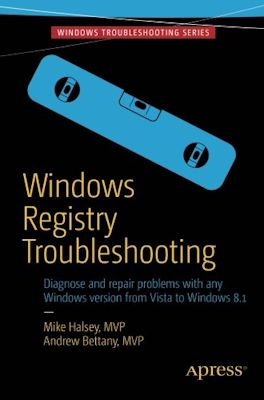 |
recommend book⇒Windows Registry Troubleshooting | |||||||||||||||||||||||||||||||||||||||||||||||||||||||
| by | Mike Halsey, Andrew Bettany | 978-1-4842-0993-6 | paperback | |||||||||||||||||||||||||||||||||||||||||||||||||||||
|---|---|---|---|---|---|---|---|---|---|---|---|---|---|---|---|---|---|---|---|---|---|---|---|---|---|---|---|---|---|---|---|---|---|---|---|---|---|---|---|---|---|---|---|---|---|---|---|---|---|---|---|---|---|---|---|---|
| birth | 1970-03-27 age:48 | 978-1-4842-0992-9 | eBook | |||||||||||||||||||||||||||||||||||||||||||||||||||||
| publisher | Apress | B00SMFP7VW | kindle | |||||||||||||||||||||||||||||||||||||||||||||||||||||
| published | 2015-04-30 | |||||||||||||||||||||||||||||||||||||||||||||||||||||||
| This is an introductory book on the registry. | ||||||||||||||||||||||||||||||||||||||||||||||||||||||||
| ||||||||||||||||||||||||||||||||||||||||||||||||||||||||
| Greyed out stores probably do not have the item in stock. Try looking for it with a bookfinder. | ||||||||||||||||||||||||||||||||||||||||||||||||||||||||
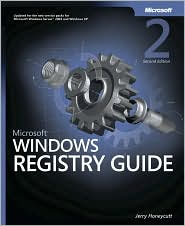 |
recommend book⇒Microsoft Windows Registry Guide | |||||||||||||||||||||||||||||||||||||||||||||||||||||||
| by | Jerry Honeycutt | 978-0-7356-2218-0 | paperback | |||||||||||||||||||||||||||||||||||||||||||||||||||||
|---|---|---|---|---|---|---|---|---|---|---|---|---|---|---|---|---|---|---|---|---|---|---|---|---|---|---|---|---|---|---|---|---|---|---|---|---|---|---|---|---|---|---|---|---|---|---|---|---|---|---|---|---|---|---|---|---|
| publisher | Microsoft | 978-0-7356-3735-1 | eBook | |||||||||||||||||||||||||||||||||||||||||||||||||||||
| published | 2005-09-14 | B0043M58TY | kindle | |||||||||||||||||||||||||||||||||||||||||||||||||||||
| Covers XP registry, but not Vista. | ||||||||||||||||||||||||||||||||||||||||||||||||||||||||
| ||||||||||||||||||||||||||||||||||||||||||||||||||||||||
| Greyed out stores probably do not have the item in stock. Try looking for it with a bookfinder. | ||||||||||||||||||||||||||||||||||||||||||||||||||||||||
 |
This page is posted |
http://mindprod.com/jgloss/registry.html |
Optional Replicator mirror
|
J:\mindprod\jgloss\registry.html | |
 |
Please read the feedback from other visitors,
or send your own feedback about the site. Contact Roedy. Please feel free to link to this page without explicit permission. | |
| Canadian
Mind
Products
IP:[65.110.21.43] Your face IP:[18.226.169.94] |
| |
| Feedback |
You are visitor number | |


