


 Use Firefox for best results.
 Font
Font
| Font Support Under Java | ||||||
|---|---|---|---|---|---|---|
| Font Type | Extension | Java version 1.6Windows | Java version 1.6Linux | Java version 1.6Fedora | Old Java Windows | Notes |
| OpenType (TrueType internally) |
otf | High-end fonts for Windows. | ||||
| OpenType (PostScript Adobe CCF (Composite Container Format) internally) |
otf | High end PostScript fonts. You can detect these by the file signature { 0x4F, 0x54, 0x54, 0x4F } — the string "OTTO", at the head of the file. | ||||
| TrueType | ttf | Most common font for Windows. | ||||
| PostScript | pfm/pfb | Older style PS fonts. Supported by PostScript printer hardware. Windows itself supports PS fonts, at least with Adobe Type Manager, but Java ignores them. | ||||
| Bitmap | fon | Used primarily for small font sizes. Come only a small set of point sizes. | ||||
| Vector outline | fon | These are obsolete. Used by Windows without Java. | ||||
| 8-bit fonts | any | Java needs 16-bit fonts. It won’t use 8-bit fonts directly. Old or specialty 8-bit fonts can be used by stitching them together with a Unicode mapping, a daunting task. | ||||
| SVG (Scalable Vector Graphics)fonts | svg | Vector fonts used in Linux. They tend to be free. Java does not out-the-box support them. Opera 10 beta supports them and allows them to be downloaded with a web page so you can use fonts the viewer does not necessarily already have installed. | ||||
AWT (Advanced Windowing Toolkit) will only support the five basic logical fonts, unless you paint on a Canvas, however, oddly under Fedora and AWT you can use up to 82 of your installed fonts. If you try to use more, you get an ArrayIndexOutOfBoundsException. The above information may be incorrect or may become incorrect at any time. Feel free to try any fonts with Java on any platform. The worst that could happen is they won’t work.
If you accidentally reverse the second and third constructor parameters, your code will compile, but the font display will be microscopic or invisible.
To see what fonts are available to Windows, click Start ⇒ Control Panel ⇒ Appearance and Personalization ⇒ Fonts . These fonts will work in Windows word processors and many Windows programs including browsers. Not all of the fonts will work in Java, or Java Applets however. To find out the name of the corresponding file in C:\Windows, right click Properties.
Windows stores the fonts in C:\Windows\fonts\.
// defining a Font with two style attributes
Font f = new Font( "SansSerif", Font.BOLD + Font.ITALIC, 12 );
// now deprecated
String[] files = java.awt.Toolkit.getDefaultToolkit().getFontList();
to discover the available fonts. They will include Serif (formerly known as TimesRoman), SansSerif (formerly known as Helvetica) or Monospaced (formerly known as Courier). In Java version 1.2 or later, the native fonts installed in the OS (Operating System) are also supported. The font names you feed to setFont must exactly match ones on that list. The ZapfDingbats font is deprecated in 1.1.
Font f = Font.createFont( Font.TRUETYPE_FONT, inputStream );let’s you dynamically create a 1-point plain font from a TrueType font file. It does not have to be installed in the OS. You can then deriveFont to create the fonts in the required sizes and styles. These fonts don’t work well at small point sizes because they don’t implement hinting. You could then fish fonts from the net, from the local hard disk or from the jar, much the way you can fetch images.
This does not permanently install the font. There is no platform-independent way to do that. In W2K, XP, W2003, Vista, W2008, W7-32, W7-64, W8-32, W8-64, W2012, W10-32 and W10-64, you can copy the TrueType font to C:\WINNT\FONTS.
You would have to read your font licence agreement carefully to see if it permits you to use the font in this way.
If you wish to use PostScript Type 1 multiple master fonts with W2K, XP, W2003, Vista, W2008, W7-32, W7-64, W8-32, W8-64, W2012, W10-32 and W10-64, you need to install ATM (Adobe Type Manager) 4.1 or later. Do not install ATM 4.0 or earlier on W2K, XP, W2003, Vista, W2008, W7-32, W7-64, W8-32, W8-64, W2012, W10-32 and W10-64. W2K, XP, W2003, Vista, W2008, W7-32, W7-64, W8-32, W8-64, W2012, W10-32 and W10-64 have built-in support for ordinary PostScript Type 1 fonts and OpenType, though Java ignores the PostScript fonts.
But the real problem is historical. Two fonts families, both 12 points can be drastically different sizes. The size includes a variable about of vertical white space the designer thinks looks good with his font. You can see this effect clearly when you examine fonts with FontShower. Different fonts all rendered at the same point size are drastically different in size. This creates a WORA nightmare for Java programmers. If a font is not available on the client’s computer, or if the font has the same name, but a different provider, the rendered text may be way too big or too small to fit in the space allotted. You run into this problem even with the Sun standard logical default fonts like Dialog. Phhht! To deal with this, I resorted to the ugly kludge of making my Applets 12% bigger than optimal on my Vista machine to give them some slop to run with larger versions of the 16 point Dialog font on other platforms. Of course, this makes the Applets look silly on Vista machines.
Excusing themselves with artistic licence, font designers make their type sometimes up to twice as tall as requested or as small as half as tall. It makes some sense for fonts that also render Chinese to increase the size to ensure any Chinese rendered will still be legible. You might use the true font height numbers from the FontShower all fonts option to adjust the font sizes selected in css or Java to fully or partially compensate.
Unfortunately, when you buy a font that usually gives you the right to use it on only your computer, but not to let people download it to view your webpages, or to include it in your programs. Usually you would not even be permitted to include them in PDF (Portable Document Format) documents. BitStream discontinued its scheme of downloadable fonts called webfonts that let you include the font in your web pages. CSS provides a scheme to include your fonts in your web pages, but they have to be free fonts or fonts you have licenced to distribute.
 myfonts.com lets you test drive fonts before you buy by typing in
sample text to see how it will look. This also lets you check if iI!|l o0O8¤[]() qg Ww `'‘’ ()[]{} ;,. look too much alike. It also
lets you check for kerning errors in the font design e.g. do WA nestle properly. Just seeing letters in isolation does not
give you a sense of what the font looks like in use. The
generated font sample at MyFonts.com does not display in the box in the upper
right where you would expect. Look about half way down the page.
myfonts.com lets you test drive fonts before you buy by typing in
sample text to see how it will look. This also lets you check if iI!|l o0O8¤[]() qg Ww `'‘’ ()[]{} ;,. look too much alike. It also
lets you check for kerning errors in the font design e.g. do WA nestle properly. Just seeing letters in isolation does not
give you a sense of what the font looks like in use. The
generated font sample at MyFonts.com does not display in the box in the upper
right where you would expect. Look about half way down the page.
 |
Search | Search by font name or keyword. |
 |
Font Categories | View fonts by category |
 |
Alphabetical | View fonts alphabetically. |
 |
Languages | View fonts for languages other than English. |
 |
Best Sellers | Look at what other people are buying. |
 |
Test Drive Fonts | Typecast app to test fonts. |
 |
WhatTheFont | Identify fonts |

| Aquila Regular | Just a touch of eccentricity to make it interesting. | |
| Base Nine and Twelve | This font is particularly good at small point sizes. It is an open design so the loops don’t clog. It offers small caps. It is somewhat heavy looking. | |
| Bookman Old Style | This has an old-fashioned, relaxed, hot-oatmeal for breakfast look. | |
| Calibri | Comes bundled with Vista. sans-serif. Renders very sharply. Very spare, like something an engineer might use on drawings. Lighter than Arial. | |
| Cash EF | This a modern-looking monospace font. Further, even in the tiniest font sizes it is eminently readable. It’s big problem is the zero and capital O are identical making this font useless for programmers. I have written the Eslner+Flake type foundry who created it asking them to create a variant suitable for programmers. They ignored me. | |
| Consolas | Comes bundled with Vista. Renders very sharply. Monospaced. Perhaps the best looking monospaced font. Has a sort of Euro spare look. | |
| Constantia | Comes bundled with Vista. Renders very sharply. Somewhat old-fashioned looking with pronounced serifs. Used old-style figures. 0123456789 will be different sizes and alignments if you have it installed. | |
| DPCustomMono2 | A monospaced font designed expressly for proofreading. It makes it easy to tell comma/period and colon/semicolon apart. You need anti-aliasing turned on for it to look half-way decent. | |
| Frutiger | Microsoft ripped this elegant design off by changing it slightly and calling it Segoe and reserving it as their corporate font. | |
| Keystrokes | Keycaps to let you explain the keystrokes you need to get do something on your PC (Personal Computer). The problem is you are not allowed to use the font on your website, which defeats the purpose of it. | |
| OCR-B | A monospaced font designed originally for optical character recognition. In making the characters distinct enough for computers, they also made them distinct for rapid human reading. There are no decent free ones around. | |
| Palatino | This an elegant font, something like the font equivalent of Paul Revere silver designs emphasising utility and simplicity. | |
| PragmataPro | Excellent programmer font. Legible in tiny sizes. Easy to tell all glyphs apart. Monospace. Designer Fabrizio Schiavi listens when customers make suggestions. | |
| Segoe Print | looks like hand printing. Comes bundled with Vista. | |
| Segoe UI | Comes bundled with Vista, W2008, W7-32, W7-64, W8-32, W8-64, W2012, W10-32 and W10-64. Renders very sharply. Delicate, clean, works well in small sizes for labeling things. | |
| Sys | Good for small type. Has glyphs for almost everything. Well hinted. Austere but rounded looking. It has a problem in that italic does not work in Java. Presumably that will be soon fixed. The font was just released. | |
| Tiresias PCFont Z | The letters are unusually distinctive so there is no confusing them. It is
very clean simple proportional font. It was designed for people with poor
eyesight so gives particularly smooth reading for people with normal
eyesight. Most fonts are poorly designed so it is hard to tell the characters
iI!|l o0O8¤[]() qg Ww `'‘’ ()[]{} ;,. apart. Tiresias is a special font family designed so that
even the visually impaired can distinguish them. It looks like this:
If you already have it installed, all the type in this sentence will look similar. It is the default font for my website for non-Windows platforms. I asked the designers to create a monospace variant but they declined. | |
| Tisa | This a modern-looking serif font. It is quite readable. You can get it as a web font. Richard Dawkins uses it. | |
| Warnock Pro Opticals | These are the Porsches of fonts. I doubt I will ever own them since they are so expensive. |
As I understand it, you typically can do the following things without needing an extra multi-user licence above and beyond buying the font:
As I understand it, you need an extra multi-user license to do the following things:
To control the font and size of any individual item such as tooltip, click Start ⇒ Settings ⇒ Control Panel ⇒ Display ⇒ Appearance ⇒ Item. You can then select Active Title Bar, Inactive Title Bar, Palette Title, Message Box, Menu, Selected Item or Icon and set the font and size.
Neither of these techniques will change the font sizes used by applications. For that you need to look to custom ways in each application to customise the fonts and sizes.
Java fonts look terrible because by default they do no antialiasing and ignore the hints. You can improve them with anti-aliasing.
Most fonts don’t support many of the national currency symbols. Tahoma is better than most.
On my Vista machine, configured in the Control Panel to use ClearType anti-aliasing to smooth font edges, under both AWT and Swing I see fonts fully anti-aliased. The only time I see degraded fonts are when I view fonts rendered on an AWT Canvas without anti-alias. Ditto for XP. With an LCD (Liquid Crystal Display) monitor, you want ClearType subpixel anti-aliasing. To turn it on click Start ⇒ Control Panel ⇒ Appearance and Personalization ⇒ Personalization ⇒ Windows color and appearance ⇒ Open classic colour and appearance ⇒ Effects ⇒ ClearType.
Here is how to activate ClearType font in Windows XP:
By default anti-aliasing is on. For some fonts, Vista even supports subpixel anti-aliasing called Clear Type.
// OOPS, DON'T DO THIS!
component.setFont( new Font( "Dialog", 12, Font.BOLD ));

// do this instead:
component.setFont( new Font( "Dialog", Font.BOLD, 12 ));
On Windows, sometimes strange rendering problems are caused by a corrupt font cache. You can simply delete the cache, sacrifice
del C:\WINNT\System32\fntcache.datOther times the problem is a defective font. Before you pull your hair out, check to see if your problems go away if you try one of the standard fonts instead. Defective font problems can manifest in bizarre ways — e.g. cursor offset from where it should be, duplicate rendering and misplaced text.
Font f = new Font( "Monospaced", Font.PLAIN, 12 )is a very time consuming operation. Save your Font objects and reuse them rather than creating new ones. See FontSaver to reduce RAM (Random Access Memory) usage by Java fonts.
Having too many fonts installed, (not the same thing as having too many duplicate Font objects), has several drawbacks:
boolean Font.canDisplay( char );will let you know if there is a glyph matching a given Unicode character in a given font. Unfortunately, it has a rather lax definition of can display. It will often return true and just display a blob or empty rectangle.
It is up to you to find a font that can display the character you need. Unfortunately, fonts often lie about what glyphs they can display. For example, if you ask them if they can display a euro, they say yes, then display a blob, which in their distorted view of things counts as displaying the character. Technically, canDisplay is supposed to return true for any code point in the range handled by the font, which is not very useful information.
Happily, if you specify a font not installed on the target machine, Java simply reverts to the default font. There is no mechanism similar to CSS or HTML where you can specify a list of fonts in preference order. You have to code that yourself and feed setFont a specific Font.
Font defaultFont = new Font( "Dialog", Font.PLAIN, 12 );
UIManager.put( "Button.font", new FontUIResource ( defaultFont ) );
You can make similar default font changes to these elements:
| Button.font | List.font | PasswordField.font | TableHeader.font | ToggleButton.font |
| Checkbox.font | Menu.font | PopupMenu.font | Text.font | ToolBar.font |
| ColorChooser.font | MenuBar.font | ProgressBar.font | TextArea.font | ToolTip.font |
| ComboBox.font | MenuItem.font | RadioButton.font | TextField.font | Tree.font |
| EditorPane.font | OptionPane.font | ScrollPane.font | TextPane.font | |
| Label.font | Panel.font | Table.font | TitledBorder.font |
The approach is to write your own Look & Feel that extends some other one and just overrides a few font-defining methods or colour-defining methods. See this sample code for a writing a derived LAF.
if you want to attempt multi-lingual fonts. Prior to Java version 1.4, I only managed to get Unicode fonts to display properly with NT and Win2K and Internet Explorer. Windows 98 displays accented letters above 255 without the accents.
There are an astounding number of fonts available, many free. However, finding what you want is almost impossible. You have to keep wading through thousands of inappropriate choices. The universe is polluted with what I would call spam fonts, fonts you can’t read. They could only be used for a few words. Fonts need to be classified much more finely than now, so I can spend 5 minutes deciding what I want then see only candidates that match well. I should be able to say I want round, square, rounded square, oval, or diamond-shaped capital O. I should be able to select from a dozen basic styles of lower case g. You should be able to specify which characters you need supported, whether you need small caps, varying weights etc. You also need to be able to home in the font you want the way an optometrist homes in on your optimal prescription. It would show you two fonts. You tell it which one looks better. It then homes in. It might even show you ten at a time for faster homing in. You also might handle it like an automated game of twenty questions. Just having fonts rated for legibility would a great help in narrowing the field. A computer person wanting to tackle this problem would need the help of a qualified font designer to specify the various font properties, ieally ones that can be measured mathematically, not requiring human judgement.
A minor rant is the computer fonts. Not a one of them looks like the output of any computer screen or printer I have ever seen. I want computer fonts to realistically simulate the output of actual computers.
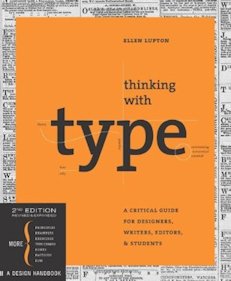 |
recommend book⇒Thinking with Type, 2nd revised and expanded edition: A Critical Guide for Designers, Writers, Editors, & Students | |||||||||||||||||||||||||||||||||||||||||||||||||||||||
| by | Ellen Lupton | 978-1-56898-969-3 | paperback | |||||||||||||||||||||||||||||||||||||||||||||||||||||
|---|---|---|---|---|---|---|---|---|---|---|---|---|---|---|---|---|---|---|---|---|---|---|---|---|---|---|---|---|---|---|---|---|---|---|---|---|---|---|---|---|---|---|---|---|---|---|---|---|---|---|---|---|---|---|---|---|
| birth | 1963 age:54 | 978-1-61689-045-2 | eBook | |||||||||||||||||||||||||||||||||||||||||||||||||||||
| publisher | Princeton Architectural | B00JH8H4EG | kindle | |||||||||||||||||||||||||||||||||||||||||||||||||||||
| published | 2010-10-06 | |||||||||||||||||||||||||||||||||||||||||||||||||||||||
| This is not a font catalog book. It is a book about how to select the right font for the job and about how to design type generally. | ||||||||||||||||||||||||||||||||||||||||||||||||||||||||
| ||||||||||||||||||||||||||||||||||||||||||||||||||||||||
| Greyed out stores probably do not have the item in stock. Try looking for it with a bookfinder. | ||||||||||||||||||||||||||||||||||||||||||||||||||||||||
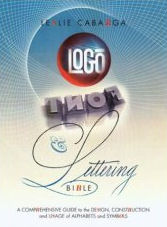 |
recommend book⇒Logo Font & Lettering Bible: A Comprehensive Guide to the Design, Construction and Usage of Alphabets and Symbols | |||||||||||||||||||||||||||||||||||||||||||||||||||||||
| by | Leslie Cabarga | 978-0-7153-1699-3 | paperback | |||||||||||||||||||||||||||||||||||||||||||||||||||||
|---|---|---|---|---|---|---|---|---|---|---|---|---|---|---|---|---|---|---|---|---|---|---|---|---|---|---|---|---|---|---|---|---|---|---|---|---|---|---|---|---|---|---|---|---|---|---|---|---|---|---|---|---|---|---|---|---|
| birth | 1954 age:63 | 978-1-58180-436-2 | hardcover | |||||||||||||||||||||||||||||||||||||||||||||||||||||
| publisher | How Design | B00457XCOK | kindle | |||||||||||||||||||||||||||||||||||||||||||||||||||||
| published | 2004-03 | |||||||||||||||||||||||||||||||||||||||||||||||||||||||
| This is about how to design your own custom fonts and logos. | ||||||||||||||||||||||||||||||||||||||||||||||||||||||||
| ||||||||||||||||||||||||||||||||||||||||||||||||||||||||
| Greyed out stores probably do not have the item in stock. Try looking for it with a bookfinder. | ||||||||||||||||||||||||||||||||||||||||||||||||||||||||
 |
recommend book⇒Big Book of 5000 Fonts: (And Where to Get Them) | |||||||||||||||||||||||||||||||||||||||||||||||||||||||
| by | David Carter | 978-0-8230-0489-8 | paperback | |||||||||||||||||||||||||||||||||||||||||||||||||||||
|---|---|---|---|---|---|---|---|---|---|---|---|---|---|---|---|---|---|---|---|---|---|---|---|---|---|---|---|---|---|---|---|---|---|---|---|---|---|---|---|---|---|---|---|---|---|---|---|---|---|---|---|---|---|---|---|---|
| publisher | Watson-Guptill | 978-0-8230-0489-8 | hardcover | |||||||||||||||||||||||||||||||||||||||||||||||||||||
| published | 2002-02 | |||||||||||||||||||||||||||||||||||||||||||||||||||||||
| also includes websites with free downloadable fonts. Note the publish date. Font books in general tend to be out of date. | ||||||||||||||||||||||||||||||||||||||||||||||||||||||||
| ||||||||||||||||||||||||||||||||||||||||||||||||||||||||
| Greyed out stores probably do not have the item in stock. Try looking for it with a bookfinder. | ||||||||||||||||||||||||||||||||||||||||||||||||||||||||
Because displays are becoming ever higher resolution, at some point, we will be able to drop font hinting. Without hinting, it will be much less effort to design fonts.
Fonts will have colours and transparency, just like other images. You could then have a font with little Santa Clauses, in full colour, sitting atop some of the capital letters. You could make the letters look as if they were made of red and green candy cane.
 |
This page is posted |
http://mindprod.com/jgloss/font.html |
Optional Replicator mirror
|
J:\mindprod\jgloss\font.html | |
 |
Please read the feedback from other visitors,
or send your own feedback about the site. Contact Roedy. Please feel free to link to this page without explicit permission. | |
| Canadian
Mind
Products
IP:[65.110.21.43] Your face IP:[52.15.63.145] |
| |
| Feedback |
You are visitor number | |



