


 Eclipse
The current version is Oxygen 4.7. Last revised/verified: 2017-06-28. Oxygen in coming in 2017. Previous versions included: Indigo, Juno, Kepler, Luna, and Mars.
They used to use names of heavenly bodies for major releases. A popular free IDE (Integrated Development Environment) for writing Java. It does refactoring. It was originally developed by IBM (International Business Machines). It is an enormous project encompassing more than just an IDE. Internally it uses SWT (Standard Widget Toolkit), IBM is a crack at tackling the same problem Swing does, but more streamlined. You have the option of using AWT (Advanced Windowing Toolkit), Swing or SWT in your own code. Eclipse is Jon Skeet’s favourite IDE. I used it for a while several years ago the moved to IntelliJ. It allows plug-ins for extra functionality. It uses its own compiler that lets it do incremental compiles and hot swapping of code during debugging. There are dozens of different versions of it, each targeting a different type of developer, including C++ and JavaScript.
| Vocabulary | Directory Structure |
| Advantages | Tips |
| Disadvantages | Upgrading |
| Eclipse Is A SCID | Books |
| Downloading | Links |
| Plug-Ins |
Eclipse has a very flexible structure.
A workspace is a directory that can contain multiple projects. When the IDE is opened, the user can select the which workspace to work within. Code is not shared between workspaces.
A project contains the source code, compiled classfiles, and the paths to library jar files. The libraries can be included in the project, or may be external to the project. A project can also depend upon another project, so that the sources and libraries in the project that is depended upon are available to the dependent project.
Source files are contained within packages. A project can have multiple package structures. Eclipse allows the user to set which files are source files and which are not. The project is compiled as a whole.
Multiple jar files can be created from a project. The jar can include just the class files, the source and class files, or the source files, class files and library files. Each jar file is independent and each source file within a project can be individually included in the jar file, or excluded from the jar file.
You may have no interest in how Eclipse works under the hood, but you had better understand at least as much as I am about to explain. Eclipse has its own copy of the source files. It also compiles them on the fly, as you type. This is how it can navigate so quickly, do global renames, refactor, find references and declarations instantly, compile instantly and undo changes, plugins etc. It does not use Javac.exe at all (except in an ant build). It tokenizes your source as you type, checks for errors and uses its own incremental/background compiler when you hit save.
Every time you click save at saves a conventional *.java copy of the class source on disk along with a corresponding compiled *.class file. However, if you modify one of those files, delete it, rename etc., sometimes nothing happens. It is as if Eclipse were oblivious to your changes. The true copy of your program is in RAM (Random Access Memory). Don’t touch Eclipse’s *.java files while Eclipse is running.
Instead of meddling with Eclipse’s *.java files, export, fix with your conventional tools and editors and the import the back again.
Import is the trickiest feature of Eclipse. Check after every import that your new source overrode the old and went into the correct place. You can drag and drop to the correct place if it missed. It is so easy to mess up and effectively lose all the work you did outside Eclipse. If you screw up, you can compare Eclipse files with your exported ones, correct your copy of the files with SlickEdit Diffzilla™ and reimport them. Again, there is no point in using Diffzilla to directly fix the Eclipse files. I suggest you experiment with a practice set of files till you are sure you get the hang of import, export and refresh. The full story is more complicated than I presented here. You can make changes to the source files if you know what you are doing.
Eclipse itself is written in Java and you will notice a copy of javaw.exe running while it is. It is good example of just how polished a Java app can be. Show it to someone the next time they tell you there are no real apps in Java.
Eclipse is a 103 MB download. You likely want the release candidate, not the latest build. Eclipse has no installer. You just unzip it to a directory of your choice then create a shortcut to eclipse.exe you can add to menus or the desktop. It uses IE to display its online help files. You might want to set up a bat file like this to launch eclipse.exe. Windows shortcuts are not bright enough to include command line parameters. You can tweak the parameters for maximal speed. Eclipse has 13 different downloads not counting the platform and 32 vs 64 bit versions. They don’t bother to clearly explain the differences between them all. They don’t tell you the version numbers of the various downloads. I really hate it when projects do that. They presume you have studied for months before you even make you first download. To make it worse they use arbitrary, meaningless and undefined names like Juno (frequent release) and Indigo (annual release). It is as though they are doing all they can to scare off new users.
If the project were called savetheworld and my package were called com.mindprod.stopbush, then the *.java files it generates would live in J:\ecwork\savetheworld\com\mindprod\stopbush\. They are thus fully accessible by ordinary text editors and other tools, but as I warned later, don’t modify them when Eclipse is running.
Then add a new remote site with label of Eclipse SDK (Software Development Kit) 3.1.1 Updates and an address of http://update.eclipse.org/updates/3.1
Then tick the new site and select finished button.
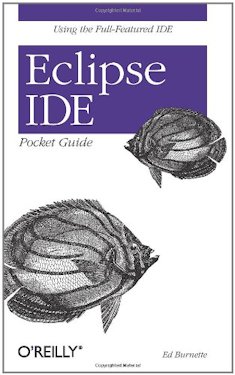 |
recommend book⇒Eclipse IDE Pocket Guide | |||||||||||||||||||||||||||||||||||||||||||||||||||||||
| by | Ed Burnette | 978-0-596-10065-0 | paperback | |||||||||||||||||||||||||||||||||||||||||||||||||||||
|---|---|---|---|---|---|---|---|---|---|---|---|---|---|---|---|---|---|---|---|---|---|---|---|---|---|---|---|---|---|---|---|---|---|---|---|---|---|---|---|---|---|---|---|---|---|---|---|---|---|---|---|---|---|---|---|---|
| publisher | O’Reilly  |
978-0-596-55262-6 | eBook | |||||||||||||||||||||||||||||||||||||||||||||||||||||
| published | 2005-08-19 | B0028N4WBU | kindle | |||||||||||||||||||||||||||||||||||||||||||||||||||||
| Details all of Eclipse’s important views, menus and commands. | ||||||||||||||||||||||||||||||||||||||||||||||||||||||||
| ||||||||||||||||||||||||||||||||||||||||||||||||||||||||
| Greyed out stores probably do not have the item in stock. Try looking for it with a bookfinder. | ||||||||||||||||||||||||||||||||||||||||||||||||||||||||
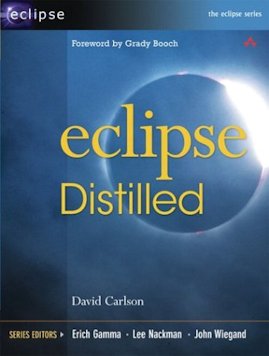 |
recommend book⇒Eclipse Distilled | |||
| by | David Carlson | 978-0-321-28815-8 | paperback | |
|---|---|---|---|---|
| publisher | Addison-Wesley Professional | |||
| published | 2005-02 | |||
| Greyed out stores probably do not have the item in stock. Try looking for it with a bookfinder. | ||||
 |
This page is posted |
http://mindprod.com/jgloss/eclipse.html |
Optional Replicator mirror
|
J:\mindprod\jgloss\eclipse.html | |
 |
Please read the feedback from other visitors,
or send your own feedback about the site. Contact Roedy. Please feel free to link to this page without explicit permission. | |
| Canadian
Mind
Products
IP:[65.110.21.43] Your face IP:[18.116.36.192] |
| |
| Feedback |
You are visitor number | |


